> ## Documentation Index
> Fetch the complete documentation index at: https://docs.mem.ai/llms.txt
> Use this file to discover all available pages before exploring further.
# Getting started
> Connect your AI tools to Mem using MCP
Connect your AI client to Mem's MCP server.
This page documents setup for Claude, ChatGPT, Claude Code CLI, Codex CLI, and Gemini CLI.
## Claude (web/desktop)
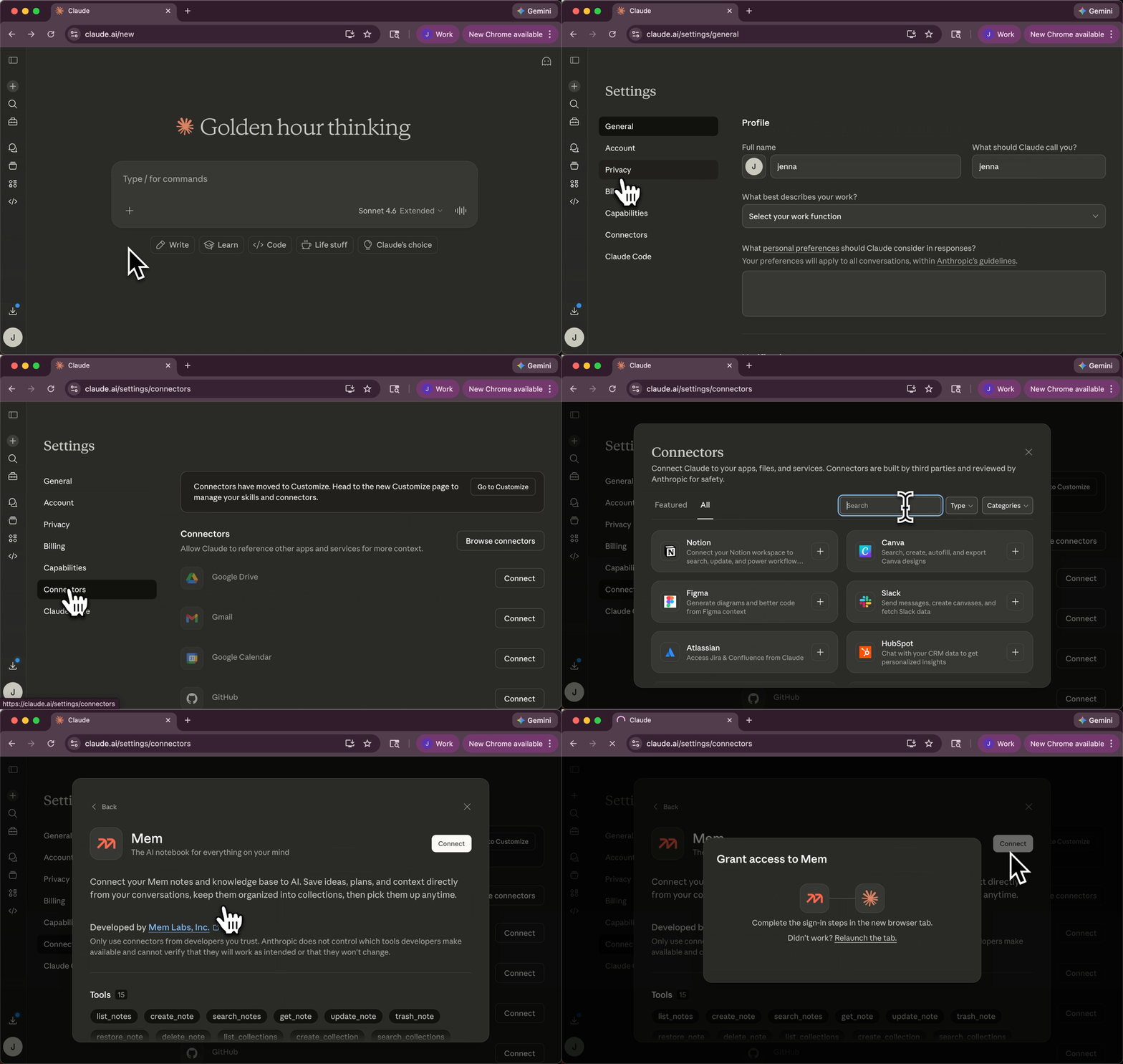
Use the following instructions to connect the Mem MCP server to Claude.
Open the sidebar to get to the Customize page.
On the Customize page, click Connectors, then click + to add a connector.
Find Mem and add it.
Complete the OAuth flow to connect your Mem workspace.
 Open **Settings -> Connectors**.
Click **Add custom connector** and enter:
```text theme={null}
https://mcp.mem.ai/mcp
```
Complete the OAuth flow to connect your Mem workspace.
## ChatGPT
Open [Mem on the ChatGPT store](https://chatgpt.com/apps/mem/asdk_app_699f3c9f85788191874d8a0a43d5bca3) and click **Connect**.
ChatGPT walks you through the remaining setup.
## Claude Code CLI
```bash theme={null}
claude mcp add --transport http mem https://mcp.mem.ai/mcp
```
Run `/mcp` in Claude Code and complete the browser OAuth flow.
## Codex CLI
```bash theme={null}
codex mcp add mem --url https://mcp.mem.ai/mcp
```
Start a Mem tool call in Codex and complete the OAuth flow when prompted.
## Gemini CLI
```bash theme={null}
gemini mcp add -s user -t http mem https://mcp.mem.ai/mcp
```
Run `gemini`, then `/mcp auth mem` to complete the browser OAuth flow.
## Provider docs
* [Claude connectors docs](https://support.claude.com/en/articles/11175166-get-started-with-custom-connectors-using-remote-mcp)
* [Manage Claude's tool access](https://support.claude.com/en/articles/13730515-manage-claude-s-tool-access)
* [Use connectors to extend Claude's capabilities](https://support.claude.com/en/articles/11176164-use-connectors-to-extend-claude-s-capabilities)
* [ChatGPT connectors docs](https://help.openai.com/en/articles/11487775-connectors-in-chatgpt)
* [ChatGPT developer mode + full MCP connectors docs](https://help.openai.com/en/articles/12584461-developer-mode-and-full-mcp-connectors-in-chatgpt-beta)
* [Claude Code MCP docs](https://code.claude.com/docs/en/mcp)
* [Codex MCP docs](https://developers.openai.com/codex/mcp)
* [Gemini CLI MCP docs](https://geminicli.com/docs/tools/mcp-server/)
## Troubleshooting
* Make sure your client can open a browser window for sign-in and consent.
* If the flow was interrupted, disconnect and reconnect the Mem connector in your client.
* Confirm you are signing in to the intended Mem account/workspace.
If you are on a Claude Team or Enterprise plan, a Claude Owner or Primary Owner needs to enable Mem for the organization before members can connect it.
Ask the owner to add Mem in **Organization settings -> Connectors**. After Mem is available for the organization, connect your own Mem account from your Claude connector settings.
* A direct `401` from `https://mcp.mem.ai/mcp` without auth is expected.
* In your MCP client, reconnect Mem to refresh authentication and retry.
* Reduce request frequency and batch larger operations when possible.
* Respect `Retry-After` before retrying.
* Review current limits at [/api-reference/overview/rate-limits](/api-reference/overview/rate-limits).
* Verify the connector URL is exactly `https://mcp.mem.ai/mcp`.
* Re-list connectors/servers in your client and confirm Mem is enabled.
* Retry the setup flow for your client.
* In Claude, open the `+` menu, then go to **Connectors** and confirm Mem is enabled for the current conversation.
* Check **Connectors -> Tool access**. In `On demand`, Claude searches for the right connector before loading it, which can add an extra discovery step.
* If you need Mem to be available every time in that conversation, switch Claude to `Always available`.
* Be explicit in your prompt when needed, for example: `Use the Mem connector for this task.`
* If Claude still does not load Mem, disconnect and reconnect the Mem connector, then retry the conversation.
* Anthropic documents this behavior here:
* [Manage Claude's tool access](https://support.claude.com/en/articles/13730515-manage-claude-s-tool-access)
* [Use connectors to extend Claude's capabilities](https://support.claude.com/en/articles/11176164-use-connectors-to-extend-claude-s-capabilities)
Open **Settings -> Connectors**.
Click **Add custom connector** and enter:
```text theme={null}
https://mcp.mem.ai/mcp
```
Complete the OAuth flow to connect your Mem workspace.
## ChatGPT
Open [Mem on the ChatGPT store](https://chatgpt.com/apps/mem/asdk_app_699f3c9f85788191874d8a0a43d5bca3) and click **Connect**.
ChatGPT walks you through the remaining setup.
## Claude Code CLI
```bash theme={null}
claude mcp add --transport http mem https://mcp.mem.ai/mcp
```
Run `/mcp` in Claude Code and complete the browser OAuth flow.
## Codex CLI
```bash theme={null}
codex mcp add mem --url https://mcp.mem.ai/mcp
```
Start a Mem tool call in Codex and complete the OAuth flow when prompted.
## Gemini CLI
```bash theme={null}
gemini mcp add -s user -t http mem https://mcp.mem.ai/mcp
```
Run `gemini`, then `/mcp auth mem` to complete the browser OAuth flow.
## Provider docs
* [Claude connectors docs](https://support.claude.com/en/articles/11175166-get-started-with-custom-connectors-using-remote-mcp)
* [Manage Claude's tool access](https://support.claude.com/en/articles/13730515-manage-claude-s-tool-access)
* [Use connectors to extend Claude's capabilities](https://support.claude.com/en/articles/11176164-use-connectors-to-extend-claude-s-capabilities)
* [ChatGPT connectors docs](https://help.openai.com/en/articles/11487775-connectors-in-chatgpt)
* [ChatGPT developer mode + full MCP connectors docs](https://help.openai.com/en/articles/12584461-developer-mode-and-full-mcp-connectors-in-chatgpt-beta)
* [Claude Code MCP docs](https://code.claude.com/docs/en/mcp)
* [Codex MCP docs](https://developers.openai.com/codex/mcp)
* [Gemini CLI MCP docs](https://geminicli.com/docs/tools/mcp-server/)
## Troubleshooting
* Make sure your client can open a browser window for sign-in and consent.
* If the flow was interrupted, disconnect and reconnect the Mem connector in your client.
* Confirm you are signing in to the intended Mem account/workspace.
If you are on a Claude Team or Enterprise plan, a Claude Owner or Primary Owner needs to enable Mem for the organization before members can connect it.
Ask the owner to add Mem in **Organization settings -> Connectors**. After Mem is available for the organization, connect your own Mem account from your Claude connector settings.
* A direct `401` from `https://mcp.mem.ai/mcp` without auth is expected.
* In your MCP client, reconnect Mem to refresh authentication and retry.
* Reduce request frequency and batch larger operations when possible.
* Respect `Retry-After` before retrying.
* Review current limits at [/api-reference/overview/rate-limits](/api-reference/overview/rate-limits).
* Verify the connector URL is exactly `https://mcp.mem.ai/mcp`.
* Re-list connectors/servers in your client and confirm Mem is enabled.
* Retry the setup flow for your client.
* In Claude, open the `+` menu, then go to **Connectors** and confirm Mem is enabled for the current conversation.
* Check **Connectors -> Tool access**. In `On demand`, Claude searches for the right connector before loading it, which can add an extra discovery step.
* If you need Mem to be available every time in that conversation, switch Claude to `Always available`.
* Be explicit in your prompt when needed, for example: `Use the Mem connector for this task.`
* If Claude still does not load Mem, disconnect and reconnect the Mem connector, then retry the conversation.
* Anthropic documents this behavior here:
* [Manage Claude's tool access](https://support.claude.com/en/articles/13730515-manage-claude-s-tool-access)
* [Use connectors to extend Claude's capabilities](https://support.claude.com/en/articles/11176164-use-connectors-to-extend-claude-s-capabilities)